Slow Wi-Fi at Home? 10 Fixes That Actually Work
The video call freezes mid-sentence. The film buffers just before the good part. The page that loaded instantly in the morning now takes ten seconds. If this sounds familiar, your internet is probably fine — it is your Wi-Fi that is struggling.
Before you buy a new router or pay for a faster plan, work through this guide on how to fix slow Wi-Fi at home. Most slow Wi-Fi is caused by placement, settings and crowding, and those cost nothing to fix.
How to Fix Slow Wi-Fi at Home: Start With This Two-Minute Test
Stand next to your router and run a speed test on your phone. Note the number. Then stand in the room where Wi-Fi feels worst and run it again.
- If the speed is good near the router and bad far away, your connection is fine — the signal just is not reaching. Fixes 1–4 and 8 are yours.
- If it is slow even next to the router, skip to fixes 5, 9 and 10 — the problem is the router, the settings or your provider.
This one test stops you wasting money on the wrong fix.
1. Move the Router to the Middle of the Home
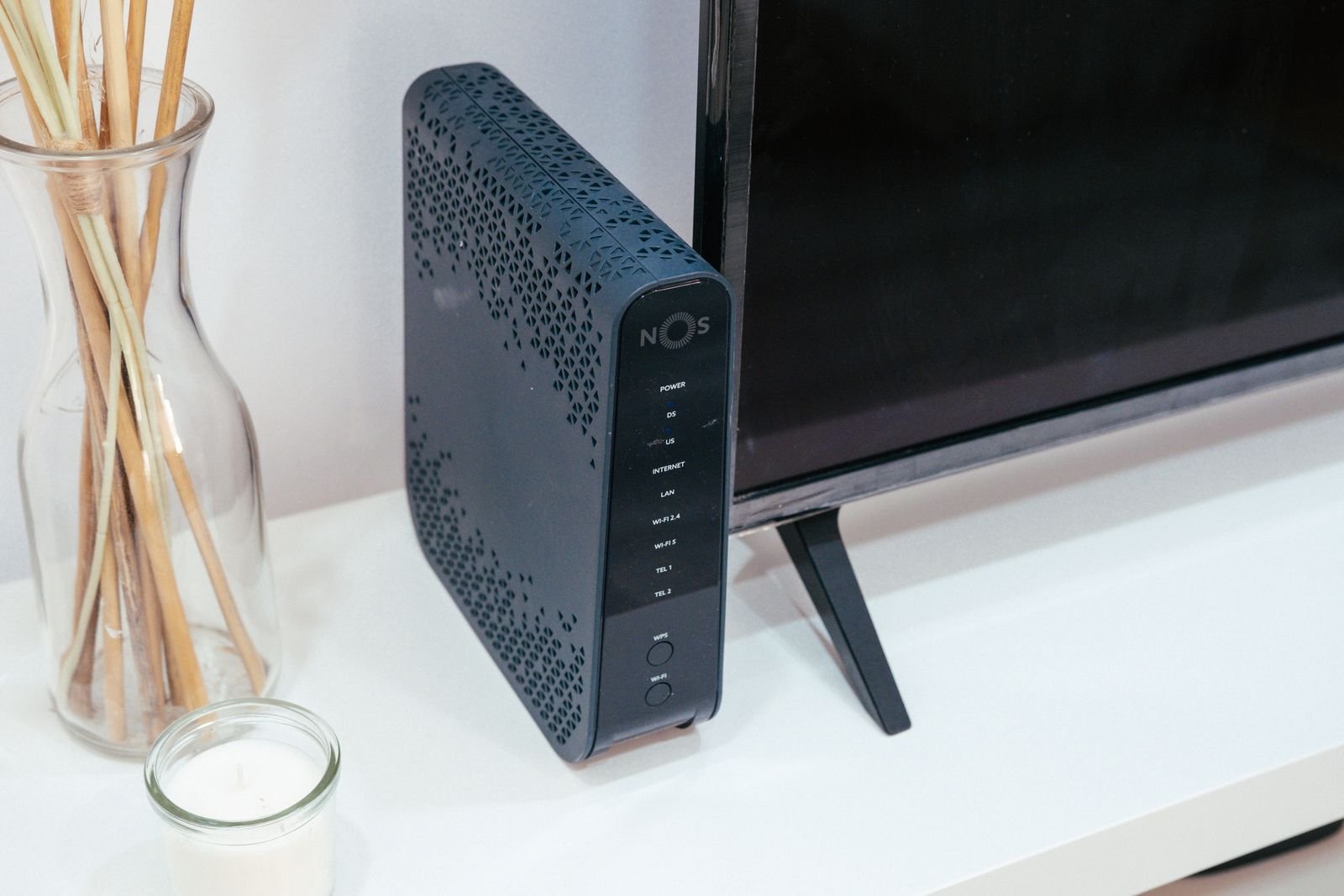
When learning how to fix slow Wi-Fi at home, remember that Wi-Fi spreads out in every direction, so a router shoved in a corner sends half its signal into the garden or the neighbour’s wall. Place it as central as you can, and up high — on a shelf, not on the floor. In most homes, simply moving the router from a corner to a central spot is the single biggest free improvement.
2. Keep It Away From Walls, Metal and Microwaves
Thick concrete and brick walls weaken Wi-Fi badly, and metal — fridges, filing cabinets, even large mirrors — reflects and blocks it. Microwave ovens interfere with the 2.4 GHz band because they work on almost the same frequency. Give the router open air: not inside a cabinet, not behind the TV, not on top of the fridge.
3. Use the Right Band: 2.4 GHz vs 5 GHz
Most routers offer two networks, and choosing the right one matters.
- 5 GHz is faster but reaches less far and struggles through walls. Use it for laptops, phones and streaming in rooms near the router.
- 2.4 GHz is slower but travels further and passes walls better. Use it for rooms far from the router — and for smart home devices. Almost all security cameras, smart bulbs and plugs only work on 2.4 GHz, which is why the Wi-Fi check comes first in our home security camera buying guide.
If your router merges both into one network name, that is fine — devices pick automatically. If speeds feel wrong, splitting them in the router settings lets you choose yourself.
4. Change the Wi-Fi Channel
If you live in a flat or a dense street, your neighbours’ routers are shouting over yours. On the 2.4 GHz band, only channels 1, 6 and 11 do not overlap each other. A free Wi-Fi analyser app on your phone shows which channels are crowded near you; switching your router to the quietest of the three takes two minutes in the settings and can transform an evening connection, when everyone is online at once.
5. Restart Properly — and Update the Firmware
Restarting clears the router’s memory and forces it to reconnect cleanly. Do it properly: switch it off, wait 30 seconds, switch it on, and give it a few minutes. While you are in the settings, check for a firmware update. Router makers fix speed and stability problems in updates, and most routers never get them because nobody looks.
6. Kick Off Unknown Devices and Lock the Door
Open your router’s app or settings page and look at the list of connected devices. Anything you do not recognise is using your bandwidth — and means your password is shared or weak. Change the Wi-Fi password, and use WPA2 or WPA3 security in the settings, never the old WEP option. Fewer freeloaders, more speed, better safety.
7. Ease the Peak-Hour Crush
One 4K stream uses about 25 Mbps. Add a video call (about 5 Mbps), a game download and three phones, and a modest plan is full — everything slows at once. If your router has a QoS (Quality of Service) setting, turn it on and prioritise work calls or streaming; the router then shares bandwidth sensibly instead of first-come-first-served. Large downloads and game updates are best scheduled overnight.
8. Add One Extender or Mesh Node — Placed Halfway
If the signal dies in one far room, an extender or a single mesh node can rescue it — but placement is everything. Put it halfway between the router and the dead room, where it still gets a strong signal itself. An extender placed inside the dead zone has nothing worth repeating. This halfway rule is the difference between an extender that fixes the problem and one that just blinks at you.
9. Test With a Cable to Corner the Real Culprit
Plug a laptop directly into the router with a network cable and run the speed test again. If the wired speed is also far below what your plan promises, the problem is not Wi-Fi at all — it is your line or provider, and no router will fix it. This is the moment to call your provider, test result in hand. If wired is fast and wireless is slow, the problem is inside your home, and the fixes above are the answer.
10. Know When the Router Really Is Too Old
Sometimes the hardware is the limit. Signs it is time: the router is more than about five years old, it only offers the 2.4 GHz band, it needs restarting every few days to behave, or it does not support Wi-Fi 6. A modern Wi-Fi 6 router handles many devices far better than older models — worth it if your home is full of phones, laptops, TVs and smart devices all online at once.
Quick Mistakes to Avoid
- Hiding the router inside a cabinet or behind the TV
- Buying a faster plan when the wired test was never run
- Placing an extender inside the dead zone instead of halfway
- Leaving the router password unchanged for years
- Blaming the provider before testing next to the router
Frequently Asked Questions
Why is my Wi-Fi slow in one room only?
Almost always distance and obstacles. Walls, floors and metal between the router and that room weaken the signal. Central placement, the 2.4 GHz band, or a halfway-placed extender fixes most single-room problems.
Is 5 GHz always better than 2.4 GHz?
No. 5 GHz is faster at short range, but 2.4 GHz reaches further and passes walls better. Far rooms and smart home devices are usually happier on 2.4 GHz.
How often should I restart my router?
Only when it misbehaves — but a proper restart (off for 30 seconds) is always the first fix to try. If you need to restart it every few days, the router is probably ageing.
Will a new router fix slow Wi-Fi?
Only if the router is the problem. If your wired speed test is slow, the line or plan is the issue. If the router is old, single-band or pre-Wi-Fi 6, a new one genuinely helps.
How much speed do I actually need at home?
For most households: about 25 Mbps for a 4K stream, 5 Mbps for a video call, and a few Mbps per phone. Add up what runs at the same time in the evening — that total is the plan size worth paying for.
The Bottom Line
Learning how to fix slow Wi-Fi at home is mostly free: move the router, pick the right band and channel, restart and update it, and test before you spend. Work through the ten fixes in order, and only open your wallet when the wired test or the router’s age tells you to.
For more practical tech guides, browse the Tech section here on RankPostHub.