How to Back Up Your Phone Photos: The Simple System That Actually Works
Your phone slips out of your pocket at the beach. Or gets stolen from your bag. Or simply refuses to switch on one morning. The phone itself can be replaced by the weekend — but the birthday videos, the baby’s first steps, the last photos of someone you love? Those are gone unless you made copies.
The good news: learning how to back up phone photos properly takes about ten minutes to set up, and after that the system mostly runs itself.
Why One Copy Is Not a Backup
Here is the rule that matters: a photo that exists in only one place is not backed up.
- Photos only on your phone disappear with the phone.
- Photos only in one cloud account can still be lost — if the account gets locked, the password is forgotten, or your free storage fills up and the backup quietly stops.
Real safety means copies in different places — the idea behind the system below.
The Simple Maths: How Much Space Do Your Photos Take?
First, it helps to know how big your photo library actually is.
An average phone photo is roughly 3–4 MB. Take a fairly typical library of 5,000 photos:
- 5,000 photos × 3 MB = 15,000 MB = about 15 GB
- 5,000 photos × 4 MB = 20,000 MB = about 20 GB
So a normal library is roughly 15–20 GB. Compare that with the free cloud tiers:
- Google accounts include 15 GB free — but that space is shared with Gmail and Google Drive, so photos compete with email and files — and a 15–20 GB library does not fit in the free tier alone.
- iCloud includes 5 GB free, also shared with device backups and files. At about 3.5 MB per photo, 5 GB holds around 1,400 photos — most people fill it within a year or two.
Videos are hungrier still: one minute of ordinary phone video can take as much space as 20–30 photos.
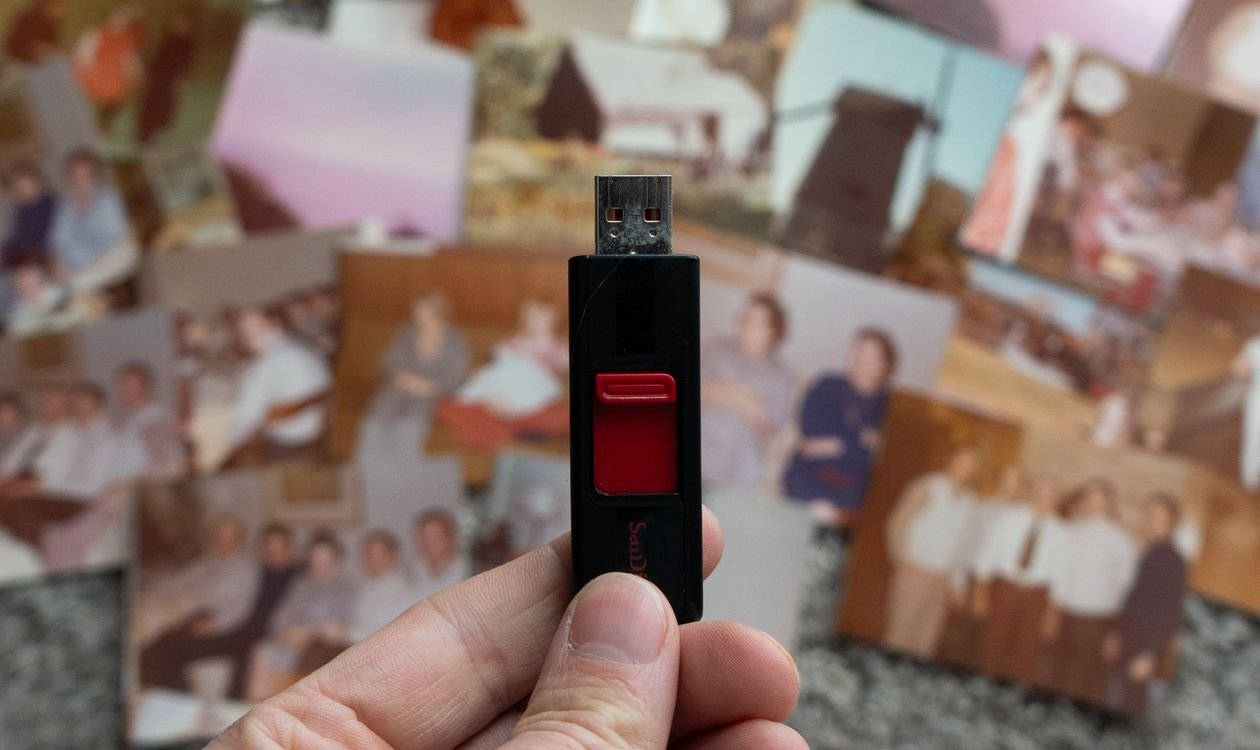
That same 17 GB library, by contrast, fits a basic 64 GB USB drive three times over. So the smartest setup uses both: cloud for convenience, cheap local storage for capacity.
The 3-Layer System, in Plain Words
Forget complicated backup software. This is the whole answer to how to back up phone photos in a way that survives real life:
Layer 1: Automatic cloud backup
Your photos copy themselves to Google Photos or iCloud whenever you are on Wi-Fi — your everyday safety net, with nothing to remember.
Layer 2: A local copy at home
Once a month, you copy your photos to a computer or a USB drive that lives in your house — no account, password or subscription needed.
Layer 3: A second copy somewhere else
Once in a while, that local copy gets duplicated — a second USB drive at a relative’s house, or an external drive stored away from the first — protecting you if fire or theft takes both the phone and the home copy.
If a photo exists in two or three of these places, almost nothing can take it from you. (The same applies to important home security footage — our home security camera buying guide compares the storage options.)
Step by Step: Android Phones
- Open the Google Photos app.
- Tap your profile picture, then Photos settings → Backup, and switch backup on.
- Choose upload quality: “Original quality” keeps every detail; “Storage saver” shrinks files slightly and suits most people.
- Leave mobile-data backup off unless you have a generous data plan — Wi-Fi is enough.
- For the local copy: plug into a computer monthly, open the DCIM folder, copy new photos into a folder named by month — “Photos – November 2026” — then copy that folder to your USB drive.
One warning: the first backup of a big library can take hours, and it will crawl on a weak connection. If uploads stall overnight, sort the connection first — our guide on how to fix slow Wi-Fi at home walks through the fixes.
Step by Step: iPhone
- Open Settings, tap your name at the top, then iCloud → Photos.
- Switch on iCloud Photos.
- Turn on Optimise iPhone Storage if your phone is short on space — the full-size photos live in iCloud and smaller versions stay on the phone.
- Check your storage: Settings → your name → iCloud shows the 5 GB free bar — for most people already full of device backups, so new photos may not be uploading at all.
- For the local copy: plug into a computer, import the photos (Photos on a Mac, File Explorer on Windows) into a dated folder, and copy it to a USB drive.
Pay for extra iCloud space or lean on the local copies — either works, as long as Layer 2 exists.
The 10-Minute Monthly Routine
Set a reminder for the first weekend of every month. Ten minutes is genuinely all it takes once you know how to back up phone photos this way:
- Check the cloud (2 minutes): open Google Photos or iCloud and confirm the backup is up to date.
- Copy to the computer (5 minutes): plug in, copy this month’s photos into a new dated folder.
- Test the backup (2 minutes): open three random older photos from the computer copy — not from your phone. If they open, the backup is real.
- Tidy up (1 minute): delete the blurry duplicates and screenshot clutter from your phone — copies exist now.
- Every few months: copy the photo folders to your second drive (Layer 3) and return it to its safe place.
Common Mistakes That Cost People Their Photos
- “They’re on my phone, that’s enough.” One drop, one theft, one dead battery chip — and the only copies are gone.
- “They’re in the cloud, that’s enough.” Accounts get locked, free tiers fill up silently, and sync mirrors deletions: delete a photo by accident and the cloud deletes its copy too.
- Counting social media uploads as backup. Photos uploaded to social apps are compressed copies, not your originals.
- Never testing the backup. A backup you have never opened is a hope, not a backup. The two-minute test above is what makes it real.
- Deleting photos from the phone too early. Only clear space once you have seen the photos safely in another place.
Frequently Asked Questions
What is the easiest way to back up phone photos automatically?
If you are asking how to back up phone photos without thinking about it: turn on Google Photos backup on Android, or iCloud Photos on iPhone. Both upload over Wi-Fi automatically. Just check monthly that free storage has not filled up — a full account stops backing up quietly.
Is Google Photos really free?
Every Google account includes 15 GB of free storage, shared across Gmail, Google Drive and Google Photos. It is genuinely free, but a big library plus years of email can fill it — which is why this system adds local copies instead of relying on the free tier alone.
How many photos fit in iCloud’s free 5 GB?
Roughly 1,400 average photos (5,000 MB ÷ about 3.5 MB each) — and in practice fewer, because your iPhone backup and files share the same 5 GB. Treat it as a safety net, not your whole plan.
If I delete a photo on my phone, does it vanish from the backup too?
With cloud sync, usually yes — Google Photos and iCloud mirror your library, so a deletion on the phone deletes the cloud copy too. Deleted photos normally sit in the trash for about 30 days, giving you a window to restore them. Your monthly computer copy is not synced, so it keeps photos you later delete from the phone.
Is a USB drive safe for long-term photo storage?
As one copy among several, yes. Drives can fail after some years, which is why the system keeps two local copies in different places. Check them monthly and replace any drive that behaves oddly.
Start Tonight, With Just Layer 1
Knowing how to back up phone photos is the easy part — starting is what counts. Tonight, just switch on automatic cloud backup — that one step already protects you against the most common disaster, a lost or broken phone. This weekend, make the first local copy. After that, ten minutes a month keeps years of memories safe.
Your photos are the one thing on your phone that money cannot replace. Give them more than one home.